Guide
Spatial Audio for Keyboard Sounds: Speakers vs Headphones
Serhii ChernikovUpdated
CupertinoClicks pans left keys left and right keys right on MacBook speakers and headphones. Stereo pan by key zone, not Apple HRTF. When each output helps and how to preview it.
CupertinoClicks Spatial Audio pans left keys to the left and right keys to the right. That map works on built-in MacBook speakers and on headphones. It is stereo pan by key zone, not Apple HRTF or Dolby Atmos.
What Spatial Audio is not
The label sounds like an Apple system feature. It is not.
CupertinoClicks does not use Apple HRTF, Dolby Atmos, or a virtual surround mix. There is no head tracking and no ceiling channel. The app assigns each key a horizontal position on a simple stereo field: Q and A lean left, P and semicolon lean right, the home row sits near center.
That is enough for typing. Your brain already knows where each key lives. Panning the sample to match the key makes long sessions feel less flat than a mono click in the middle of your head.
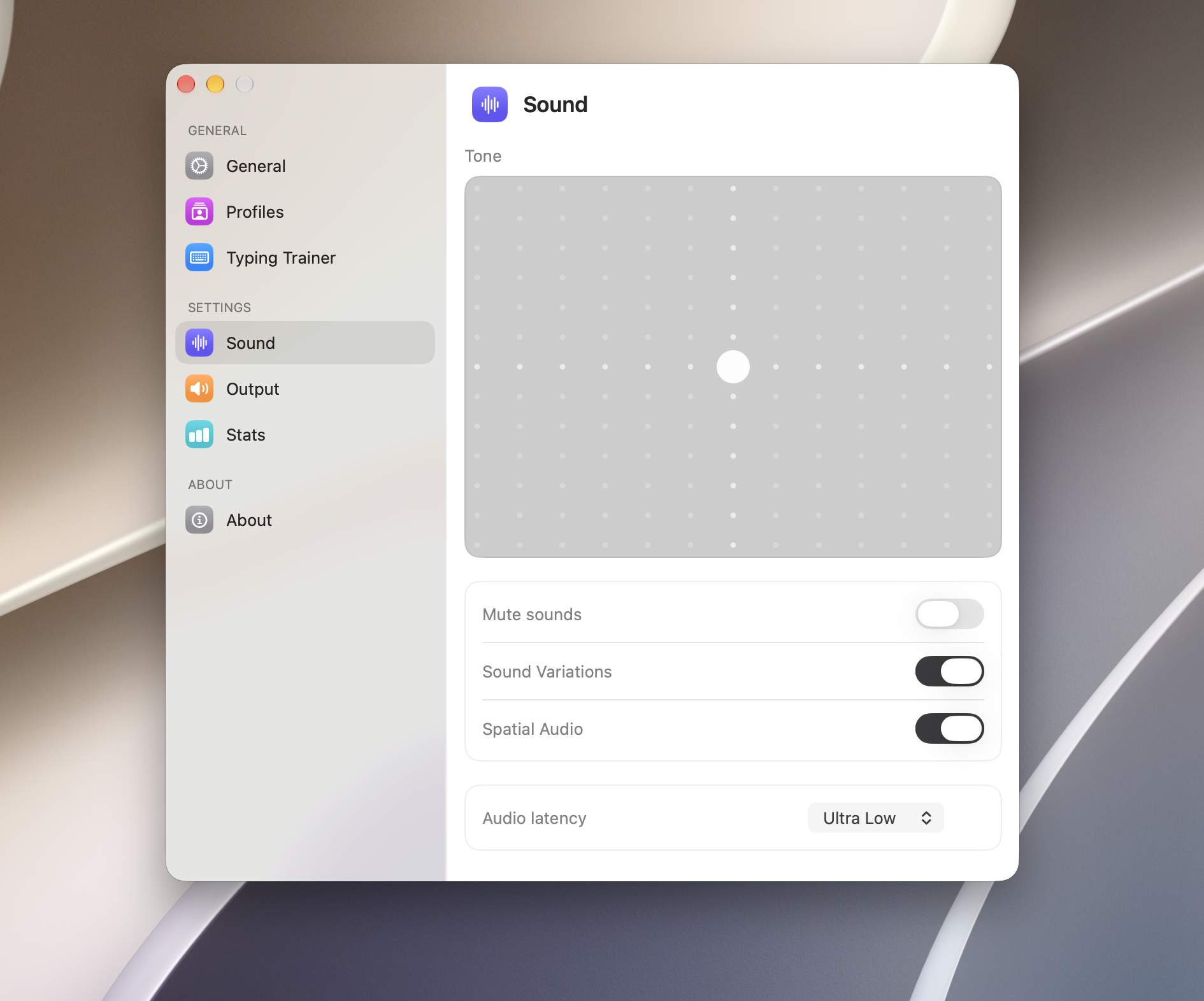
Spatial Audio is opt-in. Default playback is centered. Turn it on in Settings → Sound when you want the map.
Built-in speakers: the everyday stage
Most MacBook typing happens on the laptop itself. No cable, no case pocket for earbuds. Spatial Audio still applies.
On built-in speakers the effect is milder than in headphones. The left and right drivers sit close together under the keyboard deck, so the pan is subtle. You still get separation between the left cluster (Q, W, E) and the right cluster (O, P, bracket keys). Fast touch typing reads as a small keyboard moving under your hands instead of one dry tick from the center.
That matters on a quiet scissor board. Software adds the mechanical sample; pan adds where the sample seems to come from. If you use CupertinoClicks on a MacBook built-in keyboard or a Magic Keyboard, speakers are the path you will use most often in a home office or library.
Keep volume modest. Spatial Audio does not make a clicky preset quieter for people nearby. It only spreads the sound across the stereo field you already have.
Headphones: the same map, more width
Close the lid, plug in, or put on cans. The pan map does not change. Left keys still play left. Right keys still play right.
Headphones widen the stage because each ear gets its own channel with no room bleed. That is why many people notice Spatial Audio first in private listening: coffee shop corner, late flight, shared desk with a roommate who sleeps early.
The use case is focus, not theater. You are not simulating a concert hall. You are giving each key a place in stereo so a named switch session – Cherry MX Brown, Gateron Turquoise Tealios, or Drop Holy Panda – feels like a board in front of you rather than a file playing in mono.
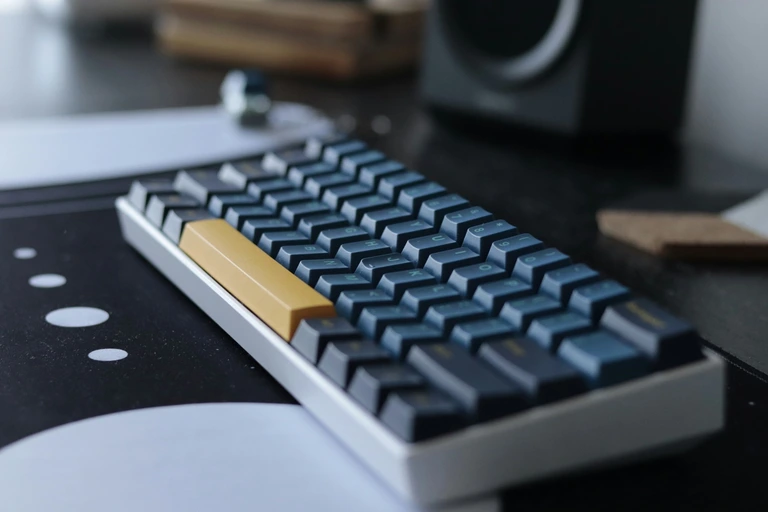
CupertinoClicks does not require headphones for Spatial Audio. Speakers and headphones both work. Pick the output that fits the room.
| Output | Pan map | Typical feel | Caveat |
|---|---|---|---|
| Built-in speakers | Left keys left, right keys right | Mild separation across the keyboard deck | Keep volume low in shared rooms |
| Wired headphones | Same pan map | Wider stereo, good for focus | Lowest added delay |
| AirPods / Bluetooth | Same pan map when stereo is active | Private listening on the go | Device adds latency the app cannot remove |
AirPods and Bluetooth delay
Spatial Audio playback is only half the story. The output device sets how tight the sound feels.
AirPods and other Bluetooth sets buffer audio. That buffer is outside CupertinoClicks. The app can offer extra-low latency presets and a small engine footprint, but it cannot erase headphone delay.
If the sample trails your finger, try wired output or built-in speakers first. Then open the latency menu and pick Ultra Low. Mono Bluetooth profiles can also collapse the pan; use a stereo profile when you care about left-right placement.
More on lag and permissions is in typing sounds not working on Mac. The main FAQ covers latency presets in one place.
Keeby pans too. Here is what CupertinoClicks adds
Keeby also pans keys by position on laptop speakers and headphones. Spatial audio is not exclusive to one Mac keyboard sound app.
CupertinoClicks adds extra-low latency control, extra-low CPU with an engine that sleeps after a minute of silence, a built-in typing trainer, a free browser trainer, and a system-wide on-screen keyboard overlay. Keeby ships 22 keyboard presets from the Mac App Store, plus a notch visualizer. CupertinoClicks ships 30 keyboard presets and five mouse click presets as a direct download.
If you are comparing apps, read the full Keeby alternative page rather than choosing based on pan alone.
How to hear it before you buy
You can preview switch sounds without installing anything. Open the online typing trainer, pick a preset, and type a paragraph. The browser trainer plays centered samples so you can judge Gateron Ink Black against Drop Holy Panda, or Cherry MX Silver Speed against IBM Buckling Spring.
Every named preset in CupertinoClicks
CupertinoClicks ships 30 keyboard presets (26 mechanical recordings and 4 novelty packs) plus 5 mouse click presets. The names below match the menu bar. Hear them in the online typing trainer, or read how each switch feels on the mechanical keyboard switch library.
Durock. Durock Alpaca.
IBM. IBM Buckling Spring.
Cherry MX. Cherry MX Black, Cherry MX Black Pro, Cherry MX Blue, Cherry MX Brown, Cherry MX Green, Cherry MX Silver Speed, and Obsidian.
Gateron. Gateron Ink Black, Gateron Ink Red, Gateron Turquoise Tealios, Gateron Milky Yellow, Gateron Green Apple, and Gateron Yellow Pro.
Drop. Drop Holy Panda.
Kailh. Kailh Box Navy.
NovelKeys. Novelkeys Cream.
Alps. Alps SKCM Blue.
Topre. Topre Classic.
Flurples. Flurples Cardboard.
Keychron. Keychron Super Red.
Akko. Akko Creamy Purple and Akko V3 Cream Yellow.
Everglide. Everglide Crystal Purple and Everglide Oreo.
Novelty. Bruh, Gunshot, Spongebob laugh, and Whip.
Mouse clicks
Quartz, Onyx, Porcelain, Steel, and Flint.
Spatial Audio, extra-low latency, and idle-stop CPU live in the Mac app after purchase. Install CupertinoClicks, enable Spatial Audio under Settings → Sound, and type in Safari or Slack. The pan map matches what you read above.
For the full install path and permission steps, see keyboard sounds for Mac.
When you are ready, get CupertinoClicks for Mac. Try the trainer first if you still want proof in the browser.
FAQ
Does Spatial Audio work on built-in speakers or only headphones?
Both. Left keys play left and right keys play right on laptop speakers and headphones. Headphones give you a wider stage. Built-in speakers are milder but use the same pan map. It is stereo pan by key zone, not Apple HRTF.
Is CupertinoClicks Spatial Audio the same as Apple Spatial Audio or Dolby Atmos?
No. CupertinoClicks pans each key sample left or right based on where it sits on the keyboard. It does not use head-related transfer functions or surround mixing. Turn it on in Settings → Sound when you want the stereo map.
Why does Spatial Audio feel late on AirPods?
Bluetooth headphones add their own buffer delay. CupertinoClicks cannot remove device latency. If the sound trails the key, try wired headphones, built-in speakers, or the Ultra Low latency preset in the menu bar app.