Add mechanical keyboard sounds to your Mac in four steps
Written by Serhii Chernikov, CupertinoClicks makerLast updated
Keyboard sounds on a Mac are short recordings that play when you press a key, so a laptop board can feel closer to a mechanical one. Download CupertinoClicks. Getting Started walks you through Input Monitoring, picking a switch, and setting the tone. After you grant permission you hear extra-low latency samples, with Spatial Audio available on laptop speakers and headphones. The Mac app is a menu bar utility for macOS 13+ – look for the extra on the right of the bar. Show in Dock is optional in Settings → General. It works on a MacBook keyboard, a Magic Keyboard, or most USB or Bluetooth boards, in Safari, Slack, Xcode, and anywhere else you type. The on-screen keyboard overlay and notch visualizer are optional from the menu bar.
Want to hear Cherry MX Blue before you install anything? Skip ahead and open the online typing trainer. For the product story, read mechanical keyboard sounds for Mac.
Here's how to do it
- 1
Download the Mac app
Buy CupertinoClicks, download it, and drop it in Applications. Open it from there so macOS treats it like any other app.
- 2
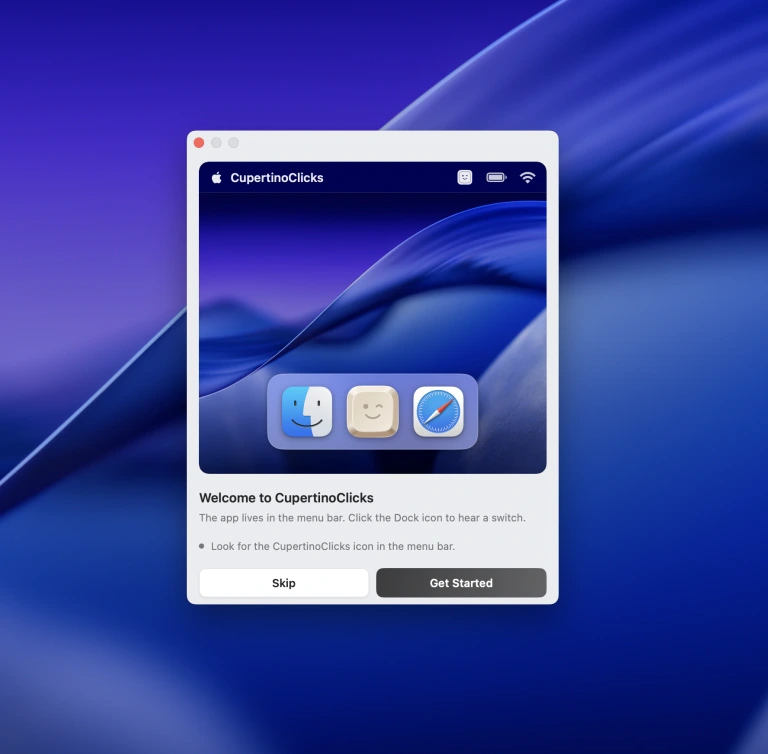
Follow Getting Started
On first launch, Getting Started walks you through listen-only Input Monitoring so sounds keep playing when Slack or Safari has focus – not Accessibility, not Full Keyboard Access. The app uses key codes to pick a local sound. It does not log or send what you type.
- 3
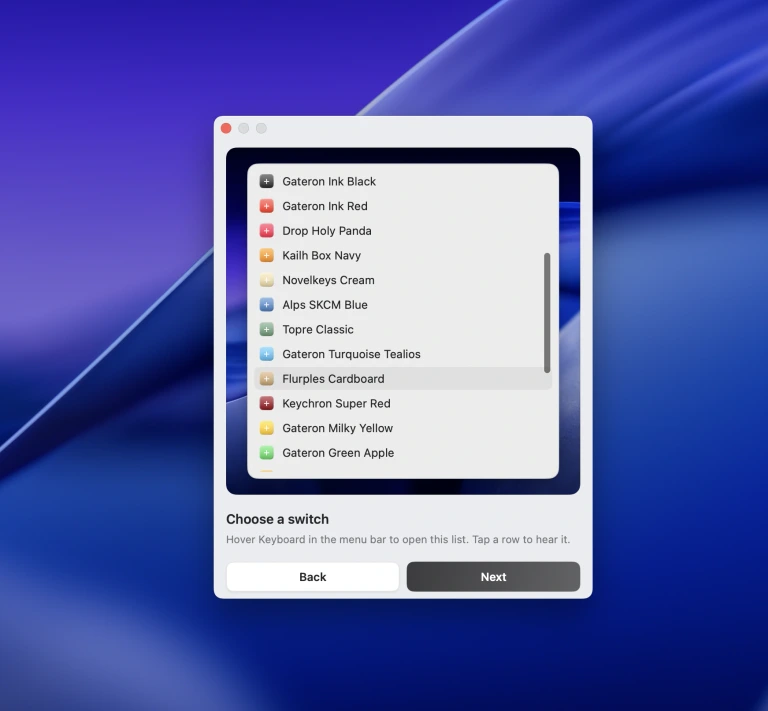
Pick a switch and set the tone
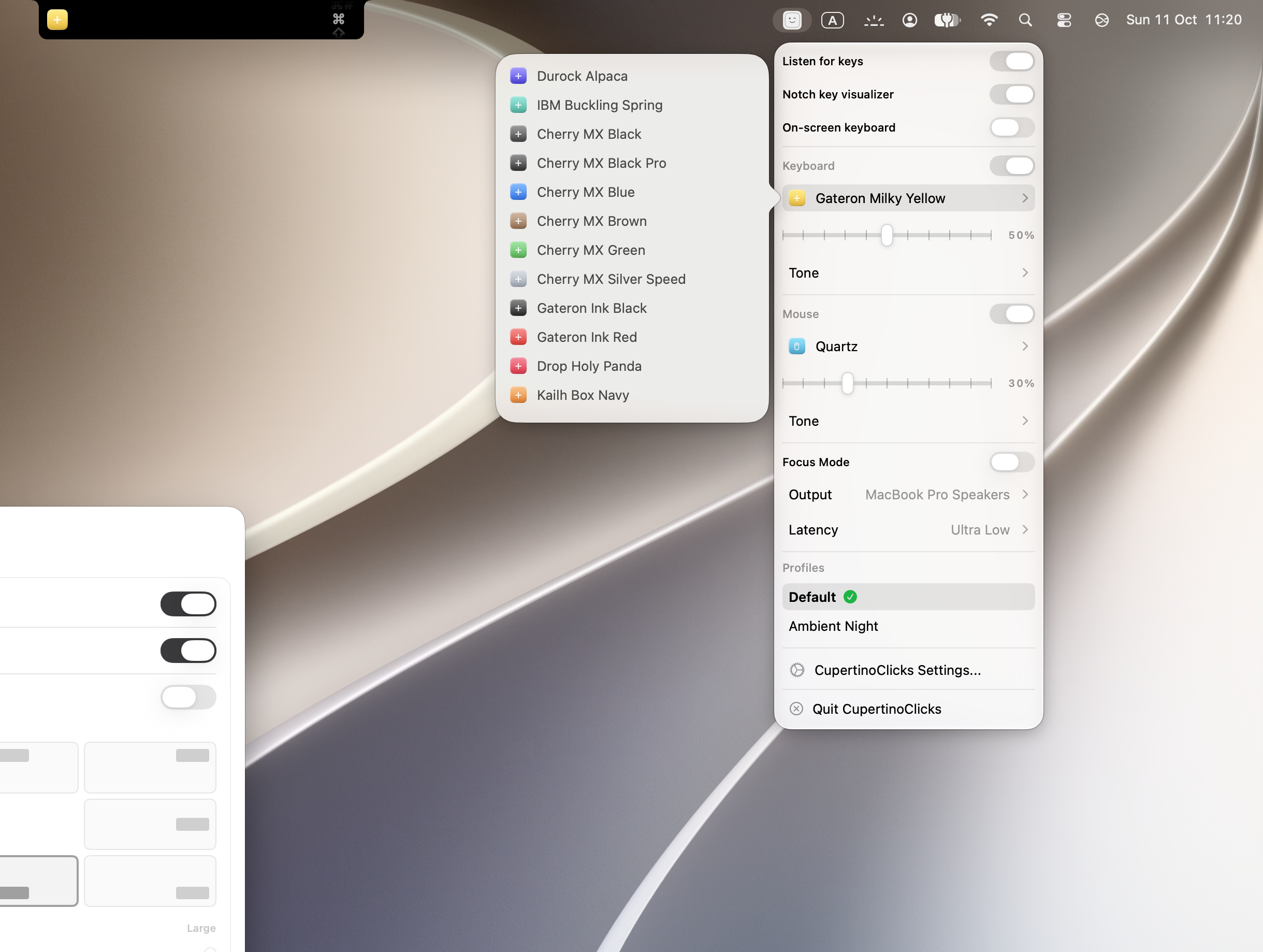
Choose something like Cherry MX Blue, Drop Holy Panda, or Topre Classic, then drag the Tone Pad toward thock or clack. After Getting Started, the same controls live in the menu bar, including Focus Mode, output, latency, the on-screen keyboard overlay, and the notch visualizer. Turn on Spatial Audio in Settings → Sound if you want left keys left and right keys right on speakers or headphones.
- 4
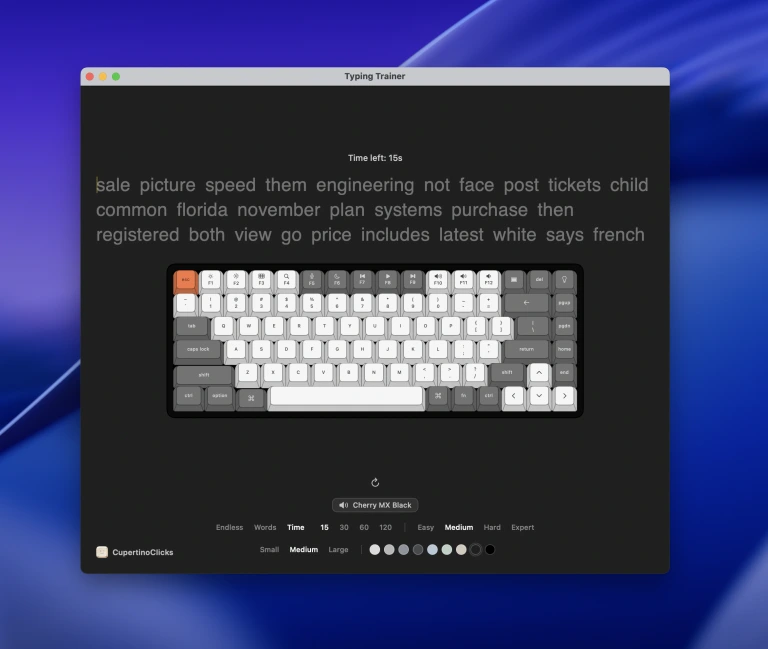
Optional: practice in the typing trainer
Open Typing Trainer in the CupertinoClicks Mac app for a timed or word-count session with live WPM. Or skip the install and use the free online typing trainer in a browser – same switch presets, no account.
Named presets are in the switch library. Comparing vendors? Start with the Mac keyboard sound app roundup, the Klack alternative, the Haptyk alternative, or the Keeby alternative.
What you need
A Mac on macOS 13 Ventura or later – Intel or Apple Silicon – and a keyboard: built-in MacBook, Magic Keyboard, or most USB or Bluetooth boards. Headphones keep the sound to yourself. After install the app lives in the menu bar – a crowded bar can hide the extra. Turn on Show in Dock in Settings → General if you want a Dock icon too. You do not need a physical mechanical keyboard.
Already installed and the keys are silent? See typing sounds not working on Mac.
FAQ
How do I add mechanical keyboard sounds on a MacBook?
Install a macOS menu bar app such as CupertinoClicks. Getting Started walks you through Input Monitoring, picking a switch, and setting the tone. Sounds play on the built-in MacBook keyboard, a Magic Keyboard, or most external keyboards. You can try presets first in the free typing trainer, and turn on the on-screen keyboard or notch visualizer from the menu bar.
Why does macOS ask for Input Monitoring?
macOS requires Input Monitoring for any app that listens to key events outside its own window. That is listen-only Input Monitoring, not Accessibility and not Full Keyboard Access. You can revoke it in System Settings → Privacy & Security → Input Monitoring.
Does CupertinoClicks work without a mechanical keyboard?
Yes. The app plays recorded switch sounds from key events. You do not need to buy a physical mechanical keyboard.
How do I download keyboard sounds for Mac?
Buy CupertinoClicks, download the Mac app, and drop it in Applications. Follow Getting Started for Input Monitoring, pick a switch, and type in any app. That is the usual path for Mac keyboard sound download – the samples are bundled, not streamed.
What are keysounds for Mac?
Keysounds for Mac are short recordings that play when you press a key. A menu bar app such as CupertinoClicks maps those samples to key events on a MacBook, Magic Keyboard, or most external boards, without a physical mechanical keyboard.