Troubleshooting
Typing Sounds Not Working on Mac? Fix Input Monitoring
Serhii ChernikovUpdated
If Mac keyboard sounds stopped, check Input Monitoring, volume, Focus, and that the menu bar app is listening. Work through the fixes in order.
Work through this list in order. Something in the chain between key event and speaker broke: listening is off, Input Monitoring reset, volume is routed to a dead device, or Focus is swallowing audio. Reinstall is last.
This is the debug path. For first-time setup, use how to add keyboard sounds on a Mac.
1. Confirm the menu bar app is running and listening
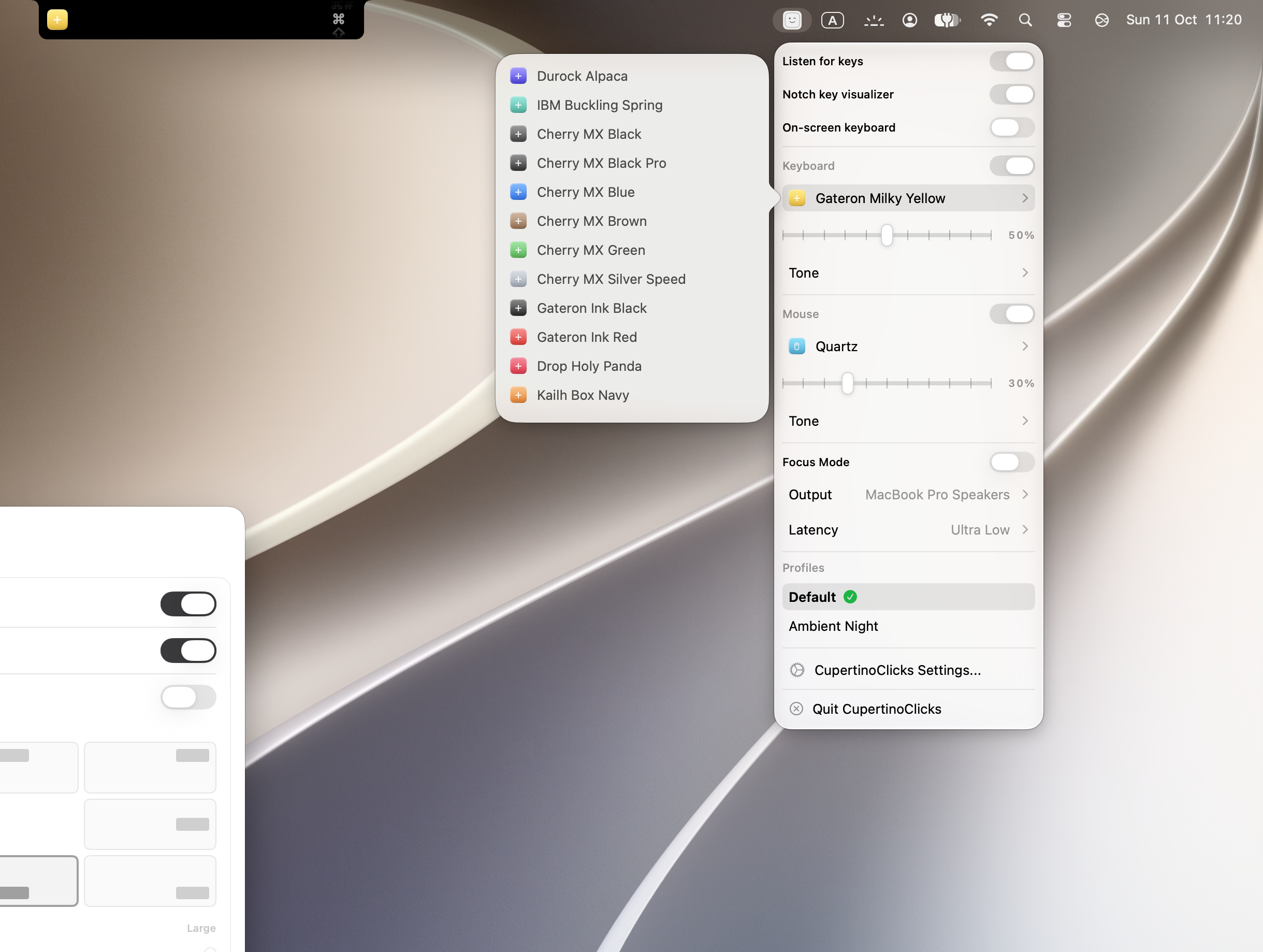
Look for the CupertinoClicks icon in the menu bar. If it is missing, open the app from Applications. On a crowded bar, it may sit behind the extra-icons chevron, or inside a menu-bar manager such as Bartender. If it is there, make sure listening is on. A toggle you used to mute for a call is the most common “it used to work” case.
Quit and reopen once. That unsticks a listener more often than a reinstall does.
2. Fix Input Monitoring
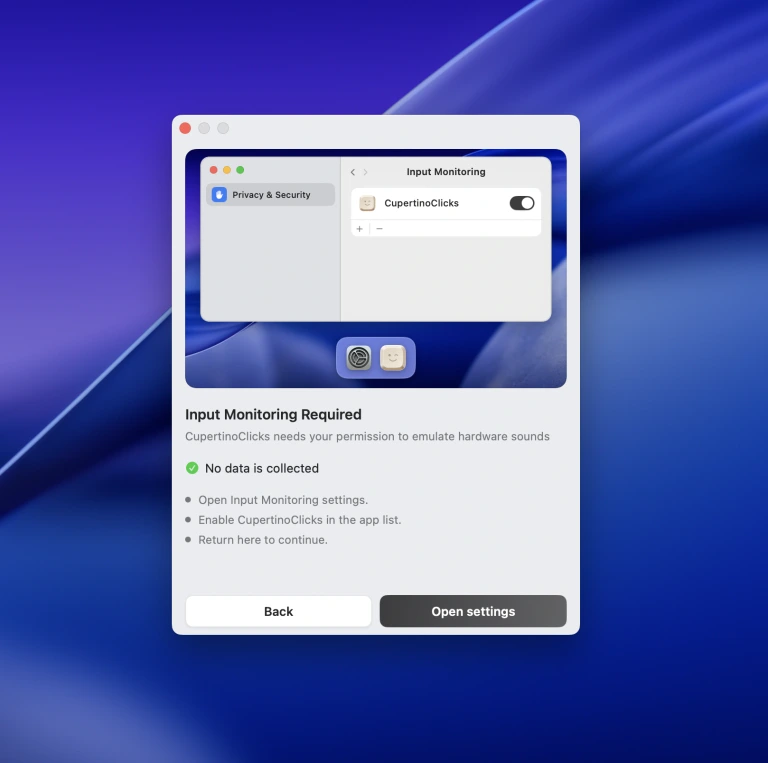
macOS requires Input Monitoring so sounds can play while another app has focus. That is listen-only Input Monitoring, not Accessibility and not Full Keyboard Access. After an OS update, the toggle sometimes resets.
- Open System Settings → Privacy & Security → Input Monitoring
- Find CupertinoClicks
- Turn it off, wait a second, turn it on
- Quit the app and open it again
If you never allowed the permission, sounds may work inside the app’s own trainer window and nowhere else. That split is a giveaway. The permission is explained in are typing sound apps safe. CupertinoClicks maps key codes only. It does not read typing force the way Haptyk does – that difference is in the Haptyk alternative.
3. Check volume and output device
Raise the in-app volume and the Mac’s output volume. Click the Control Center sound row and see which device is selected. A muted Bluetooth headset, a monitor over HDMI with no speakers, or a leftover AirPlay target will make it look like the app died.
Headphones you unplugged an hour ago can still be the selected output.
4. Check Focus, mute, and Do Not Disturb
Some Focus modes reduce distractions in ways that surprise you. Turn Focus off for a minute and type again. Also hit the mute key (or Touch Bar volume) in case the hardware mute is on.
This is separate from Input Monitoring. Permission can be granted and the speakers still gated.
5. Test in the trainer, then in Safari
Type in the Mac app’s built-in trainer or the online typing trainer. If you hear presets there, the samples and speakers are fine. Then type in Safari or Notes.
- Trainer yes, other apps no → Input Monitoring or listening off
- Nowhere → output device, mute, or the app is not running
- Only some apps → rare, but quit those apps and retry after the permission toggle
If the trainer is silent, try a different switch from the full list before you assume the app is broken.
Every named preset in CupertinoClicks
CupertinoClicks ships 30 keyboard presets (26 mechanical recordings and 4 novelty packs) plus 5 mouse click presets. The names below match the menu bar. Hear them in the online typing trainer, or read how each switch feels on the mechanical keyboard switch library.
Durock. Durock Alpaca.
IBM. IBM Buckling Spring.
Cherry MX. Cherry MX Black, Cherry MX Black Pro, Cherry MX Blue, Cherry MX Brown, Cherry MX Green, Cherry MX Silver Speed, and Obsidian.
Gateron. Gateron Ink Black, Gateron Ink Red, Gateron Turquoise Tealios, Gateron Milky Yellow, Gateron Green Apple, and Gateron Yellow Pro.
Drop. Drop Holy Panda.
Kailh. Kailh Box Navy.
NovelKeys. Novelkeys Cream.
Alps. Alps SKCM Blue.
Topre. Topre Classic.
Flurples. Flurples Cardboard.
Keychron. Keychron Super Red.
Akko. Akko Creamy Purple and Akko V3 Cream Yellow.
Everglide. Everglide Crystal Purple and Everglide Oreo.
Novelty. Bruh, Gunshot, Spongebob laugh, and Whip.
Mouse clicks
Quartz, Onyx, Porcelain, Steel, and Flint.
When to reinstall
If the steps above fail, download a fresh copy, keep your existing permission entry, and open the new build. You do not need to buy again. If Input Monitoring shows a stale duplicate, remove the old entry and grant the new one.
Still stuck? Use Feedback. Include macOS version and whether the trainer has sound. That split is the fastest clue.
Magic Keyboard users follow the same list. The board is not a special case beyond Bluetooth output – more in make a Magic Keyboard sound mechanical.
FAQ
Why did keyboard sounds stop after a macOS update?
Updates sometimes reset Input Monitoring. Open System Settings → Privacy & Security → Input Monitoring and toggle the app off and on, then quit and reopen it. That permission is listen-only. It is not Accessibility and not Full Keyboard Access.
The trainer has sound, but Slack does not.
The app is running, but macOS is not allowing key events in other apps. Grant Input Monitoring, or turn listening back on from the menu bar. Sounds inside the trainer window do not prove the permission is on.
Do I need to reinstall?
Almost never. Permission, mute, Focus, and the listening toggle cover nearly every case. Reinstall last. If the menu bar icon is missing, the app may still be running behind extra icons or a menu-bar manager.