Privacy
Are Typing Sound Apps Safe? macOS Permissions Explained
Serhii ChernikovUpdated
Typing sound apps need Input Monitoring to play audio in other apps. Here is what that permission means, what a safe app never does, and how to revoke access.
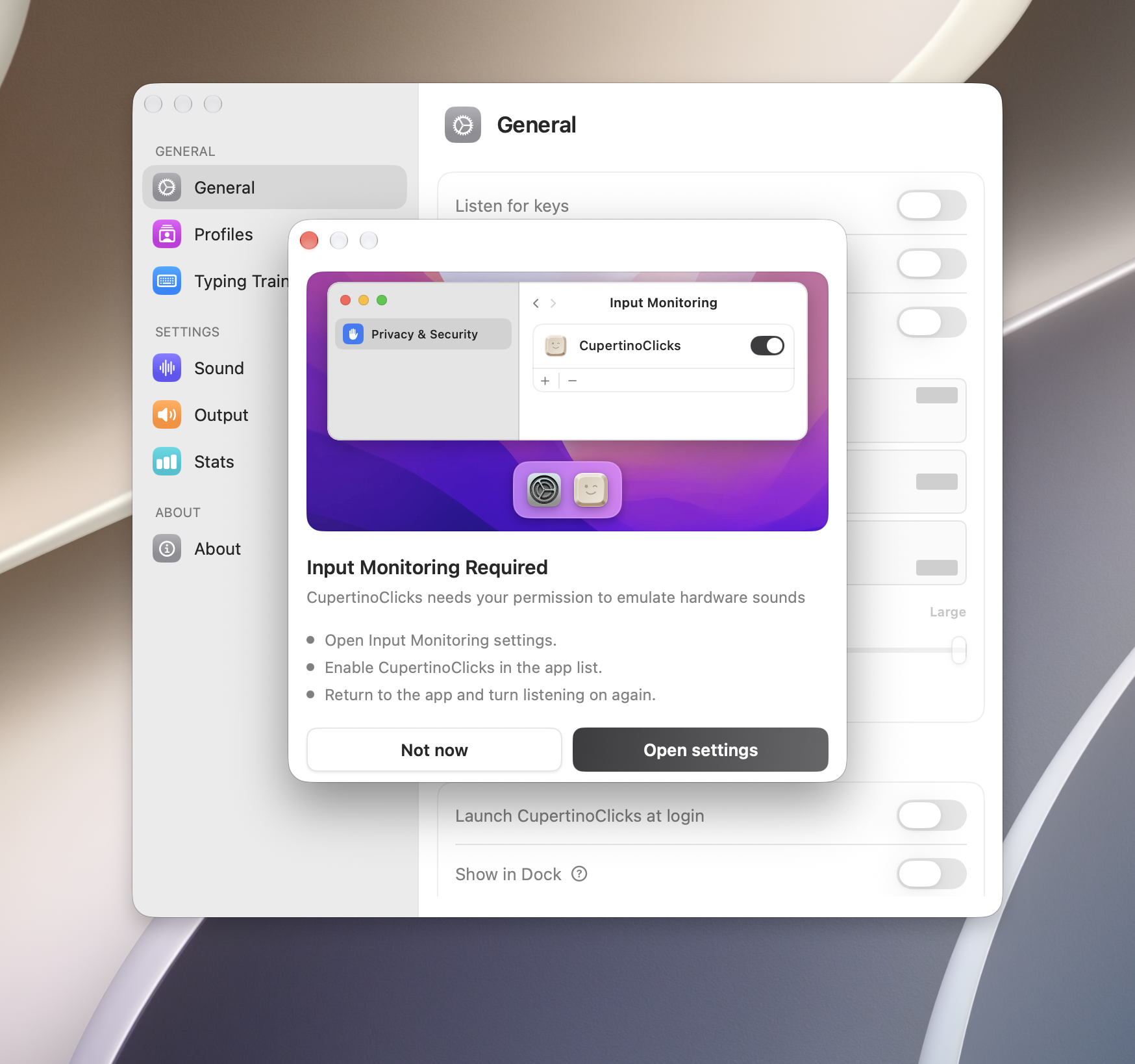
The scary-looking prompt is usually Input Monitoring. That name exists because the system treats “listen for keys in other apps” as a privacy-sensitive capability. A safe typing sound app uses it for audio and nothing else. It is not a keylogger.
What Input Monitoring is for
Keyboard sounds have to play while Safari, Slack, or Xcode has focus. To do that, the app receives key-down and key-up events from the system, then plays a local sample. Apple groups that under Input Monitoring.
That is listen-only Input Monitoring, not Accessibility and not Full Keyboard Access. A well-behaved app uses those events as a trigger: this key code, that WAV file. It does not need the character you typed, a text buffer, or a network call for playback.
CupertinoClicks maps key codes to bundled recordings on disk. It does not log what you type and does not send keystrokes anywhere for sound. Details are in the privacy policy and the FAQ.
What a typing sound app should never do
Use this as a sniff test before you install anything in this category:
- Store or upload a history of typed text
- Require an account just to play local sounds
- Ask for permissions it does not need (camera, contacts, full disk)
- Hide a live network connection behind “sound playback”
CupertinoClicks is a menu bar utility. Sound stays on the Mac. The App Store build does not use the network for typing. The direct-download build adds a network entitlement only for one-time license activation by email.
How to grant the permission
On first launch, macOS shows the Input Monitoring prompt. Allow it if you want sounds in other apps. If you skip it, the app can still run, but keys in Safari or Slack will stay silent.
You can change your mind later:
- Open System Settings → Privacy & Security → Input Monitoring
- Find CupertinoClicks
- Toggle it off to revoke, or on to restore
Turning listening off from the menu bar is the faster daily switch. Revoking the permission is the hard stop.
How this differs from other Mac keyboard apps
Some apps add extra sensors. Haptyk, for example, can read the MacBook accelerometer for typing force. That is a real feature if you want velocity-sensitive volume, and a reason to pause if you only wanted speakers and a switch sample. The Haptyk alternative comparison covers that hardware catch.
CupertinoClicks does not read typing force. It plays named switch recordings and optional mouse clicks. The full preset list is below. If sounds stop after a macOS update, the permission toggle is usually the cause – see typing sounds not working on Mac.
Every named preset in CupertinoClicks
CupertinoClicks ships 30 keyboard presets (26 mechanical recordings and 4 novelty packs) plus 5 mouse click presets. The names below match the menu bar. Hear them in the online typing trainer, or read how each switch feels on the mechanical keyboard switch library.
Durock. Durock Alpaca.
IBM. IBM Buckling Spring.
Cherry MX. Cherry MX Black, Cherry MX Black Pro, Cherry MX Blue, Cherry MX Brown, Cherry MX Green, Cherry MX Silver Speed, and Obsidian.
Gateron. Gateron Ink Black, Gateron Ink Red, Gateron Turquoise Tealios, Gateron Milky Yellow, Gateron Green Apple, and Gateron Yellow Pro.
Drop. Drop Holy Panda.
Kailh. Kailh Box Navy.
NovelKeys. Novelkeys Cream.
Alps. Alps SKCM Blue.
Topre. Topre Classic.
Flurples. Flurples Cardboard.
Keychron. Keychron Super Red.
Akko. Akko Creamy Purple and Akko V3 Cream Yellow.
Everglide. Everglide Crystal Purple and Everglide Oreo.
Novelty. Bruh, Gunshot, Spongebob laugh, and Whip.
Mouse clicks
Quartz, Onyx, Porcelain, Steel, and Flint.
Sandbox and what leaves the machine
Both the Mac App Store and direct-download builds run inside the macOS sandbox. Checkout, if you buy from the website, goes through Lemon Squeezy. Activation email is a one-time code. After that, the app works offline.
Website analytics on cupertinoclicks.com are separate from the Mac app. They do not include trainer keystrokes.
If you want the install path rather than the privacy path, use how to add keyboard sounds on a Mac.
FAQ
Why does a typing sound app need Input Monitoring?
macOS uses Input Monitoring for apps that hear key codes while another app has focus. That is how system-wide keyboard sounds work. It is listen-only Input Monitoring, not Accessibility and not Full Keyboard Access. The tap picks a local sample. It does not mean the app is a keylogger.
Can CupertinoClicks see what I type?
No. CupertinoClicks maps key codes to local sound files. It does not use Accessibility to grab event contents, and it does not log or send what you type. The Mac App Store build has no network client for typing. Details are on the privacy page.
How do I turn keyboard sounds off?
Turn listening off from the menu bar, or revoke Input Monitoring in System Settings → Privacy & Security → Input Monitoring. Either stop is immediate. The faster daily switch is the menu bar toggle.