Keeby alternative for Mac: notch, plus a full on-screen keyboard
Written by Serhii Chernikov, CupertinoClicks makerLast updated
Keeby is a $4.99 Mac App Store keyboard sound app with a notch visualizer, 22 keyboard presets (one of them a meme), and mouse clicks. Vendor site: getkeeby.com.
CupertinoClicks is the other notch app in this category, sold as a direct download at the same $4.99 price. It adds a system-wide on-screen keyboard Keeby does not list, a built-in typing trainer plus a free browser trainer, 30 keyboard presets versus Keeby's 22, 5 mouse click presets, and a Tone Pad. Stay on Keeby if App Store–only install is the whole point. For the rest of the field, see best keyboard sound apps for Mac.
App Store vs direct download
Keeby sells only through the Mac App Store. That is the right pick if Apple billing, Family Sharing, or a store install is why you bought it.
CupertinoClicks is a $4.99 one-time download from this site. Checkout is on the purchase page. You get the DMG, a two-Mac license, and updates for this major version without an App Store listing. There is no in-app purchase and no subscription.
Notch vs a full on-screen keyboard
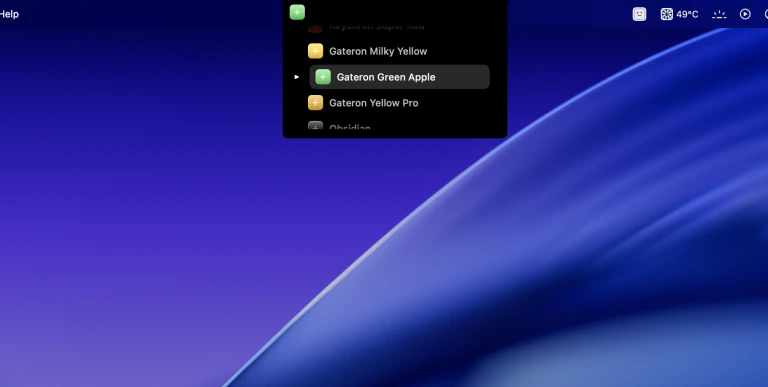
Keeby and CupertinoClicks can both show each key in the MacBook notch as you type. That overlay is rare. Klack, Haptyk, Typemac, KeyBell, and Thock do not list one.
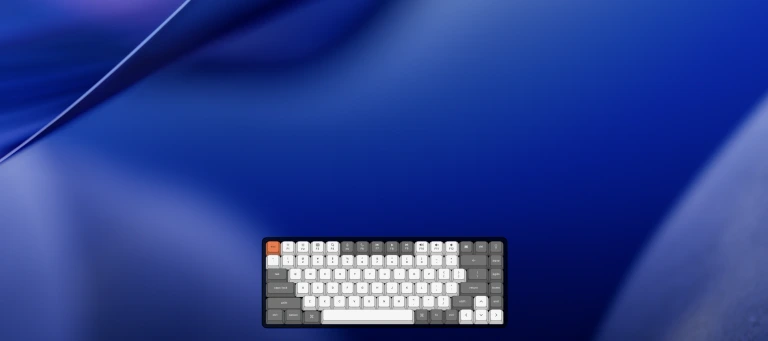
CupertinoClicks also floats a click-through on-screen keyboard over whatever you are typing in. Keys light up as you press them, in any app, including on an external display. Keeby does not ship that overlay. If you want to see the whole board, not only the notch, that is the split.
CupertinoClicks vs Keeby, feature by feature
Shared ground is the notch, mouse clicks, pan-by-position, macOS 13+, and the $4.99 price. The split is 30 keyboard presets versus 22, the full keyboard overlay, the trainer, 5 mouse click presets, Tone Pad, extra-low CPU, and where you buy it. Public listings as of August 2026.
Price
- CupertinoClicks
- $4.99 one-time
- Keeby
- $4.99 one-time
macOS
- CupertinoClicks
- macOS 13+
- Keeby
- macOS 13+
Intel / Apple Silicon
- CupertinoClicks
- Intel and Apple Silicon
- Keeby
- macOS 13 or later
What it listens to
- CupertinoClicks
- Any connected keyboard
- Keeby
- Key events
Presets
- CupertinoClicks
- 30 keyboard + 5 mouse
- Keeby
- 22 keyboard presets (1 meme)
Mouse sounds
- CupertinoClicks
- 5 mouse presets
- Keeby
- Yes (left, right, middle)
Typing trainer
- CupertinoClicks
- Built-in Mac app + free in the browser
- Keeby
- No
On-screen keyboard
- CupertinoClicks
- Yes, system-wide overlay
- Keeby
- No
Notch visualizer
- CupertinoClicks
- Yes
- Keeby
- Yes
Input Monitoring
- CupertinoClicks
- Key codes only
- Keeby
- Yes
Where to get it
- CupertinoClicks
- Direct download
- Keeby
- Mac App Store
22 keyboard presets vs 30 keyboard presets
Keeby ships 22 keyboard presets, one of them a meme, plus mouse clicks for left, right, and middle buttons. CupertinoClicks ships 30 keyboard presets and 5 mouse click presets. Hear the CupertinoClicks list in the switch library or the online trainer.
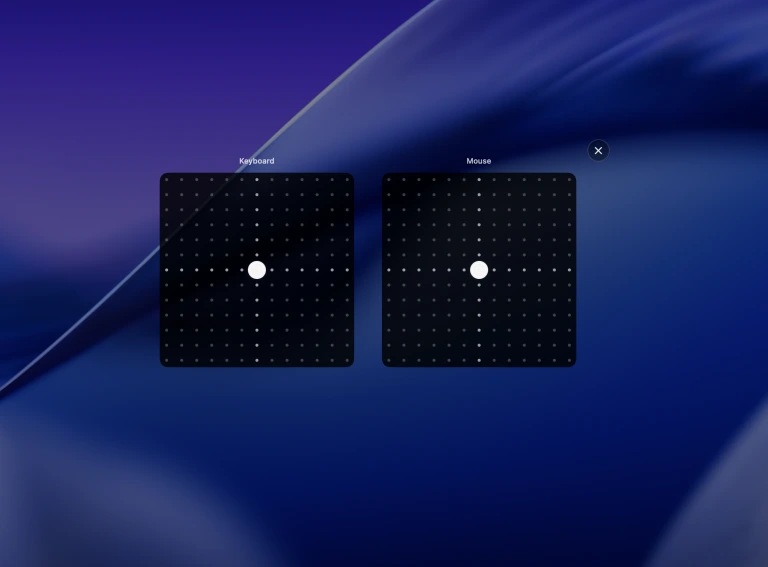
Samples have a distinct press and release, so a held key is not a machine-gun of the same file. Sound Variations keep repeats from stacking. Drag the Tone Pad if you want more thock or more clack. Spatial Audio pans left keys left and right keys right on built-in speakers and headphones.
When CupertinoClicks is the better Keeby alternative
Both apps show keys in the MacBook notch and can pan keys by position. Buy CupertinoClicks when the overlay, trainer, or larger preset list is why you would leave the App Store listing.
Choose CupertinoClicks if you want
- A system-wide on-screen keyboard overlay in addition to the notch visualizer
- A built-in typing trainer and a free browser trainer to hear the 30 keyboard presets first
- 30 keyboard presets plus 5 mouse click presets and a Tone Pad
- Extra-low latency and extra-low CPU – the live engine stops after a minute of silence
- A $4.99 direct download instead of an App Store install
Stay on Keeby if you want
- Mac App Store billing and a store-only install
- 22 keyboard presets, including a meme, plus mouse clicks and a notch overlay
- No trainer and no full on-screen keyboard overlay
Try the trainer Keeby does not ship
Keeby has no typing trainer. CupertinoClicks includes one in the Mac app and a free browser trainer with live WPM, accuracy, and the same 30 keyboard presets. No account. Then buy the $4.99 download when you want those sounds in every window, plus the overlays.
FAQ
What is Keeby?
Keeby is a $4.99 Mac App Store keyboard sound app with a notch visualizer. It ships 22 keyboard presets, one of them a meme, plus mouse click sounds for left, right, and middle buttons. It does not include a system-wide on-screen keyboard overlay or a typing trainer. Like CupertinoClicks, it can pan keys by position. The vendor site is getkeeby.com.
Can I buy CupertinoClicks on the Mac App Store?
Not yet. Keeby is App Store only. CupertinoClicks is a $4.99 one-time direct download from this site, with a two-Mac license and a free browser trainer before you buy.
Does Keeby have an on-screen keyboard?
No. Keeby shows keys in the MacBook notch. CupertinoClicks also has a notch visualizer, plus a separate click-through on-screen keyboard overlay that highlights keys in any app. In this category, only CupertinoClicks ships that overlay.
Does Keeby have a typing trainer?
No. CupertinoClicks has a built-in Mac trainer and a free browser trainer with live WPM, accuracy, and the same 30 keyboard presets. That is the try-before-you-buy path Keeby does not offer.
Keeby vs CupertinoClicks
Both cost $4.99 one-time and both can show keys in the MacBook notch. Both play mouse click sounds. Both can pan keys by position on laptop speakers and headphones. Keeby ships 22 keyboard presets, one of them a meme, from the Mac App Store. CupertinoClicks ships 30 keyboard presets, 5 mouse click presets, extra-low latency, extra-low CPU (the live engine stops after a minute of silence), a Tone Pad, a built-in typing trainer plus a free browser trainer, and a system-wide on-screen keyboard.
Which Mac keyboard sound apps have a notch visualizer?
CupertinoClicks and Keeby. The overlay shows each key in the MacBook notch as you type. Klack, Typemac, KeyBell, Thock, and Haptyk do not list a notch visualizer. CupertinoClicks is the only one of those apps with a separate on-screen keyboard overlay.
Can I try CupertinoClicks before buying?
Yes. Open the free CupertinoClicks typing trainer in a browser to hear the 30 keyboard presets with live WPM and accuracy. No account required. Keeby is sold on the Mac App Store; CupertinoClicks is a direct download for $4.99 one-time.