Guide
Where to Download a Mac Keyboard Sound App
Serhii ChernikovUpdated
Mac keyboard sound apps come from the Mac App Store or a direct DMG from the developer. Here is where to download, what permissions to expect, and what a safe install never asks for.
You have two legitimate sources: the Mac App Store and a direct download from the developer’s site. Both are normal for this category. The choice is less about “which store” and more about which sound library, which permissions, and whether you want a subscription or a one-time license.
Direct answer: where Mac keyboard sound apps come from
Mac App Store. Search for typing sound or keyboard sound. You get Apple’s review, sandboxing, and automatic updates through the store. Popular names in this space include Keeby, Klack, Thock, and KeyBell. Each ships its own samples and permission story.
Direct download (DMG). The developer hosts a disk image on their website. You download, drag the app to Applications, and activate if the build is paid. CupertinoClicks uses this path. The download page is cupertinoclicks.com/buy.
Avoid random DMG links from forums, mirror sites, or “cracked” bundles. If the file did not come from the developer or the Mac App Store, treat it as untrusted.
Direct download: CupertinoClicks from the buy page
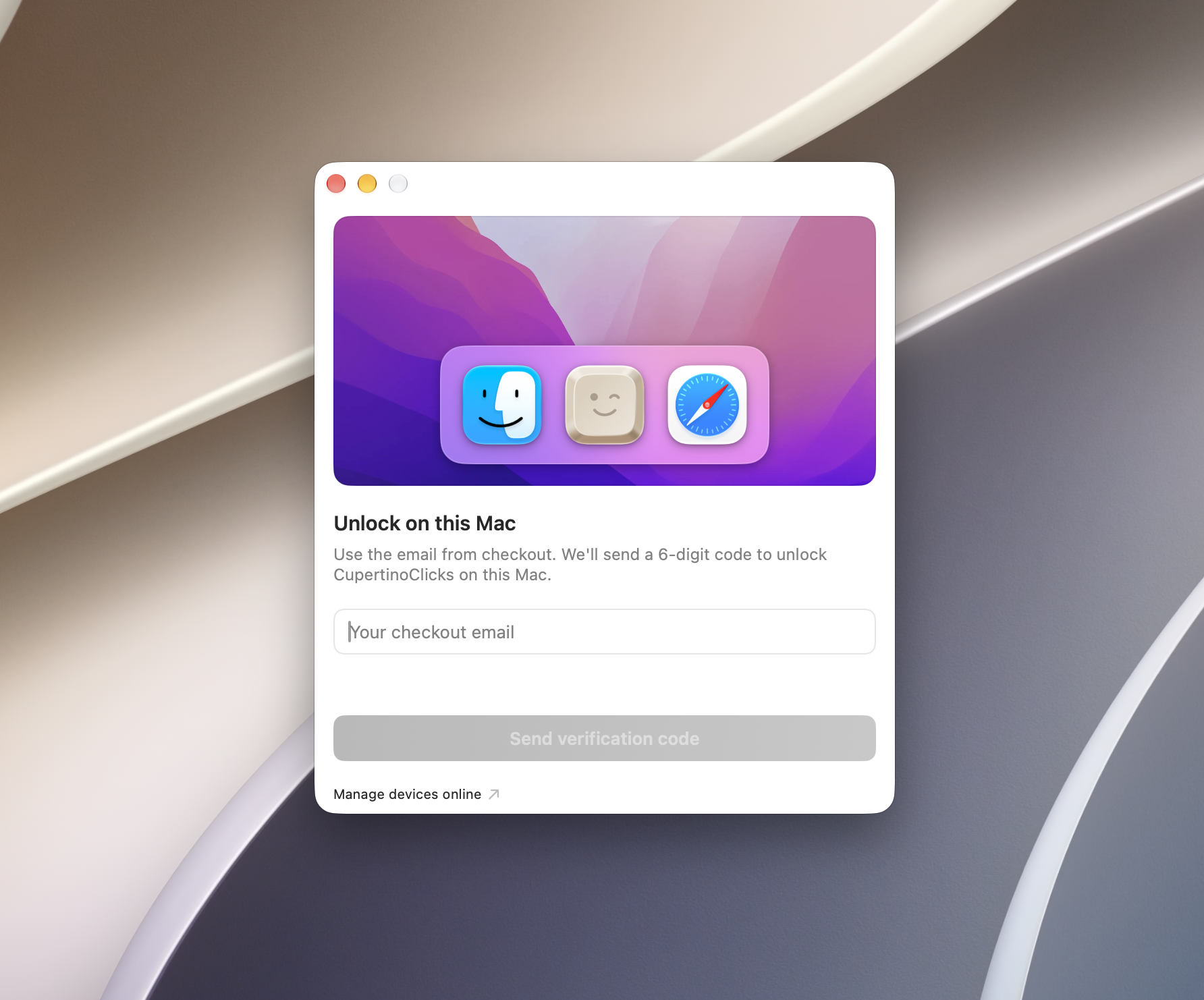
CupertinoClicks is a one-time purchase on the buy page. Checkout goes through Lemon Squeezy. You receive a DMG and an activation email. Enter the code once. After that, the app works offline.
Requirements:
- macOS 13 (Ventura) or later
- Intel or Apple Silicon
- Listen-only Input Monitoring for sounds in other apps
The direct-download build adds a network entitlement only for license activation. Sound playback does not need the network. The Mac App Store build has no network client for typing at all.
Full first-time setup, with screenshots of each step, is in how to add keyboard sounds on a Mac.
Mac App Store path and sandbox tradeoffs
App Store keyboard sound apps are sandboxed. That limits what they can reach on disk and how they talk to other processes. For many users, that is a feature. Updates arrive through the store. You never hunt for a DMG.
The tradeoff is flexibility. Sandboxed apps cannot always do everything a direct-download utility can. Some developers ship a richer sound library or faster iteration on the website build. Others keep one feature set in both channels.
If you prefer the store, compare Keeby, Klack, Thock, and KeyBell on preset count and price before you install. If you want 30 keyboard presets and a one-time license, CupertinoClicks is direct download only.
What a safe download never asks for
A typing sound app listens for key events and plays local audio. That is the whole job. Use this sniff test before you grant anything:
- Accessibility – not required for playback. Apps that ask for it may be doing more than sound.
- Full Keyboard Access – same story. Listen-only Input Monitoring is the correct permission.
- Camera, contacts, full disk, location – no legitimate reason for keyboard sounds.
CupertinoClicks asks for Input Monitoring so keys in Safari and Slack trigger samples. It maps key codes to bundled WAV files. It does not use Accessibility to read event contents. The privacy breakdown is on the privacy policy and in are typing sound apps safe.
After launch: menu bar first
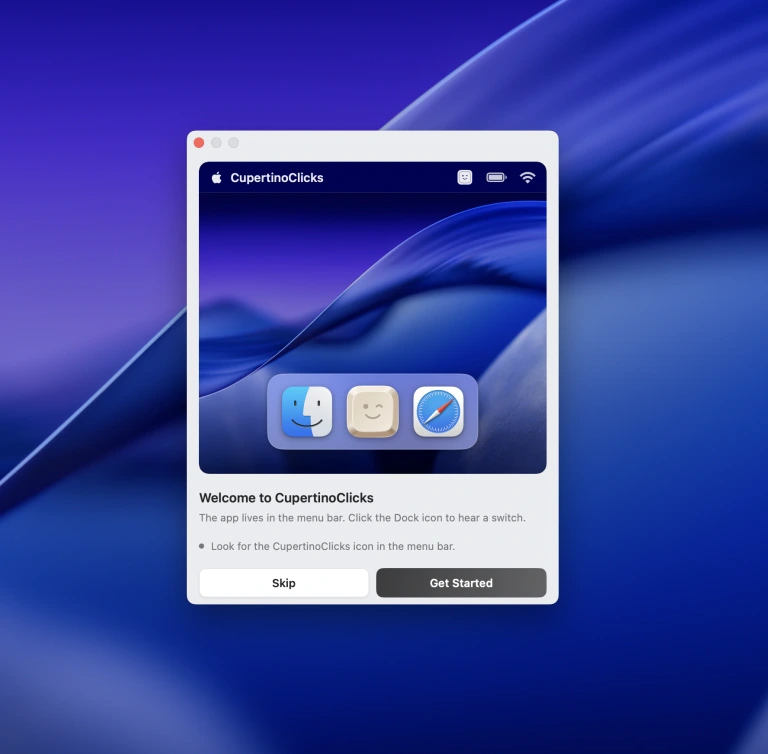
CupertinoClicks is a menu bar utility. It does not stay in the Dock by default. Look at the top of the screen for the icon. Turn on Show in Dock in Settings → General if you want a Dock icon too.
On a crowded menu bar, the icon may hide behind the extra-icons chevron (the double chevron Apple added in recent macOS versions). Menu-bar managers such as Bartender can move it out of sight. If you just installed and hear nothing, confirm the app is running before you debug permissions.
Turn listening on from the menu bar toggle. That daily switch is faster than opening System Settings.
Input Monitoring in plain language
macOS groups “hear keys while another app is focused” under Input Monitoring. The name sounds heavy because any app with that permission could, in theory, misuse key events. A well-behaved typing sound app uses the events as a trigger only: this key code, that sample.
That is listen-only Input Monitoring, not Accessibility and not Full Keyboard Access. CupertinoClicks does not log what you type and does not send keystrokes anywhere for sound.
If you skipped the prompt on first launch, open System Settings → Privacy & Security → Input Monitoring, enable CupertinoClicks, then quit and reopen the app. If sounds still fail after an update, the permission toggle is usually the cause – see typing sounds not working on Mac.
Try before you install
You do not need to download anything to hear the switch library. The online typing trainer plays the same named presets in the browser. Pick Gateron Ink Black, Everglide Oreo, Alps SKCM Blue, or any other switch and type a paragraph. When you want that sound in every app, move to the Mac build.
Every named preset in CupertinoClicks
CupertinoClicks ships 30 keyboard presets (26 mechanical recordings and 4 novelty packs) plus 5 mouse click presets. The names below match the menu bar. Hear them in the online typing trainer, or read how each switch feels on the mechanical keyboard switch library.
Durock. Durock Alpaca.
IBM. IBM Buckling Spring.
Cherry MX. Cherry MX Black, Cherry MX Black Pro, Cherry MX Blue, Cherry MX Brown, Cherry MX Green, Cherry MX Silver Speed, and Obsidian.
Gateron. Gateron Ink Black, Gateron Ink Red, Gateron Turquoise Tealios, Gateron Milky Yellow, Gateron Green Apple, and Gateron Yellow Pro.
Drop. Drop Holy Panda.
Kailh. Kailh Box Navy.
NovelKeys. Novelkeys Cream.
Alps. Alps SKCM Blue.
Topre. Topre Classic.
Flurples. Flurples Cardboard.
Keychron. Keychron Super Red.
Akko. Akko Creamy Purple and Akko V3 Cream Yellow.
Everglide. Everglide Crystal Purple and Everglide Oreo.
Novelty. Bruh, Gunshot, Spongebob laugh, and Whip.
Mouse clicks
Quartz, Onyx, Porcelain, Steel, and Flint.
Common questions about checkout, activation, and two-Mac licenses are on the FAQ.
When you are ready, get CupertinoClicks for Mac or keep comparing sounds in the trainer.
FAQ
Where do I download CupertinoClicks?
The direct-download build is on the buy page at cupertinoclicks.com/buy. You get a DMG, drag the app to Applications, and activate with a one-time license email. After activation, the app works offline. macOS 13 or later, Intel and Apple Silicon.
Is the Mac App Store safer than a direct DMG?
Both can be legitimate. App Store apps are sandboxed and signed by Apple review. Direct downloads from the developer site are also signed and notarized by Apple if the developer follows standard practice. The real safety check is permissions: a typing sound app should ask for Input Monitoring, not Accessibility or Full Keyboard Access.
Why does a keyboard sound app need Input Monitoring?
macOS uses Input Monitoring for apps that hear key codes while another app has focus. That is how system-wide sounds work in Safari or Slack. It is listen-only Input Monitoring, not Accessibility. A well-behaved app maps key codes to local samples and does not log what you type.