Guide
Do Keyboard Sound Apps Lag Behind the Key?
Serhii ChernikovUpdated
A good keyboard sound app should land the sample with the keypress. Bluetooth headphones and wireless keyboards can add delay the app cannot remove.
The sample should land with the key, not a beat later. On built-in speakers or wired headphones, CupertinoClicks is built so the click arrives when your finger finishes the stroke. Bluetooth headphones are the usual exception: AirPods and other wireless sets add device delay the app cannot remove, no matter which preset you pick.
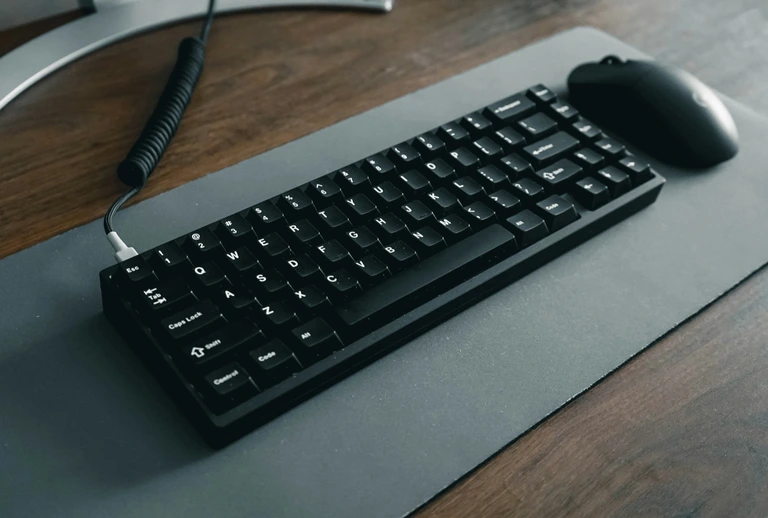
What makes typing sounds feel late
Lag is rarely one broken setting. It is a chain from key event to speaker, and any link can stretch the gap.
Audio buffer size. The Mac groups audio into chunks before it sends them to the output device. A smaller chunk means the sample can leave sooner. A larger chunk buys stability on finicky hardware at the cost of felt delay. Keyboard sound apps that never touch the output buffer can only schedule inside whatever size the system already chose.
Bluetooth codec and wireless buffering. When output goes to AirPods or another Bluetooth pair, the audio path adds encoding, radio transfer, and decoding. That stack sits after the app. Ultra Low on the Mac side still matters, but it cannot erase wireless latency. Users report the same “dubbed movie” feeling on Sony WH-1000XM4 and other popular sets.
Wireless keyboard event path. A Magic Keyboard sends key events over Bluetooth before the app ever sees them. That path is usually fast enough that you notice the headphones first. If both input and output are wireless, stack the two delays and the mismatch gets easier to feel.
None of this means the app is broken. It means some combos have honest limits.
Extra-low latency presets in CupertinoClicks
Settings → Sound has an Audio latency menu with five named presets: Ultra Low, Low, Normal, High, and Very High. Default is Normal.
Each preset asks the output device for a smaller or larger hardware buffer. Ultra Low requests the smallest size your speakers or interface accepts. Low steps up one notch. High and Very High trade a bit of felt lag for fewer glitches on picky devices.
When you change the preset, the live engine restarts. A burst mid-sentence might clip once. That is expected.
If the device cannot honor the size you asked for, a footnote appears under the picker: applied frames vs requested frames. Silence in that spot means you got what you picked. On Bluetooth output, another footnote may warn that wireless buffering remains even on Ultra Low. The app does not hide that limitation.
Start on Normal. If clicks feel late on laptop speakers, try Low or Ultra Low. If you hear dropouts, step toward High.
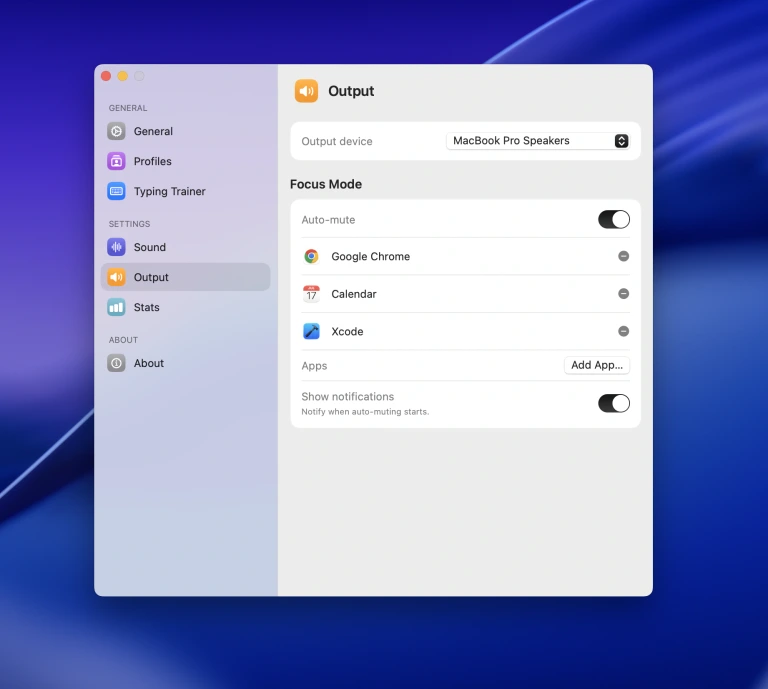
Magic Keyboard plus AirPods: the common “feels late” setup
This pairing shows up in support threads for a reason. You type on a quiet scissor board over Bluetooth. You listen on AirPods, also over Bluetooth. The switch sample is fine. The timing feels wrong because both hops add slack.
What usually helps:
- Wired output – USB-C headphones, a wired headset, or built-in speakers remove the biggest variable.
- Ultra Low or Low – still worth trying on AirPods so the Mac side is not adding avoidable buffer time.
- One wireless link, not two – Magic Keyboard with laptop speakers, or built-in keyboard with wired cans, often reads as “fixed” even though only one leg changed.
More on the keyboard side of that combo in make a Magic Keyboard sound mechanical.
The browser trainer is a preview, not a latency lab
The online typing trainer and the typing trainer guide let you hear the full switch list before you install anything. That is the point: pick a switch by ear.
Every named preset in CupertinoClicks
CupertinoClicks ships 30 keyboard presets (26 mechanical recordings and 4 novelty packs) plus 5 mouse click presets. The names below match the menu bar. Hear them in the online typing trainer, or read how each switch feels on the mechanical keyboard switch library.
Durock. Durock Alpaca.
IBM. IBM Buckling Spring.
Cherry MX. Cherry MX Black, Cherry MX Black Pro, Cherry MX Blue, Cherry MX Brown, Cherry MX Green, Cherry MX Silver Speed, and Obsidian.
Gateron. Gateron Ink Black, Gateron Ink Red, Gateron Turquoise Tealios, Gateron Milky Yellow, Gateron Green Apple, and Gateron Yellow Pro.
Drop. Drop Holy Panda.
Kailh. Kailh Box Navy.
NovelKeys. Novelkeys Cream.
Alps. Alps SKCM Blue.
Topre. Topre Classic.
Flurples. Flurples Cardboard.
Keychron. Keychron Super Red.
Akko. Akko Creamy Purple and Akko V3 Cream Yellow.
Everglide. Everglide Crystal Purple and Everglide Oreo.
Novelty. Bruh, Gunshot, Spongebob laugh, and Whip.
Mouse clicks
Quartz, Onyx, Porcelain, Steel, and Flint.
The browser does not match native extra-low latency, extra-low CPU, or Spatial Audio in the Mac app. Web audio runs on a different path with its own buffering. A preset that feels tight in Safari’s trainer may feel even tighter after install, or the opposite if you were on Bluetooth in the browser and wired in the app.
Use the trainer to choose a sound. Use the menu bar app to judge timing.
CPU when you are not typing (related, brief)
Perceived lag and idle CPU are different problems, but both come up in the same reviews.
CupertinoClicks stops the live audio engine after about a minute of silence (Reduce CPU when idle, on by default) and wakes on the next key. Listening for key events stays cheap. A silent engine sitting open is what used to cost CPU in the background. That behavior does not make clicks faster while you type. It keeps the menu bar app from rendering audio when nobody is pressing keys.
Troubleshooting if it still feels late
Work through these before you assume the app is at fault:
- Confirm output device – Control Center → sound row. A Bluetooth pair you forgot was connected is the fastest miss.
- Try wired or built-in speakers – if lag disappears, the app timing was probably fine; the headphones were not.
- Step latency down – Settings → Sound → Ultra Low or Low. Read any footnote under the picker.
- Quit and reopen after a device change – reconnecting AirPods or switching from HDMI to speakers sometimes needs a fresh apply.
- Rule out mute and routing – the typing sounds not working on Mac checklist covers volume, Focus, and Input Monitoring. Silent and late are different bugs, but both start with output device.
Still unsure whether the delay is device or app? The FAQ covers Bluetooth caveats and latency presets in one place.
Hear the timing in the Mac app
Presets in the browser tell you what switch you like. The menu bar app tells you when it lands on your desk setup.
Get CupertinoClicks for Mac for extra-low latency, Spatial Audio on speakers and headphones, and the full switch library in every app you type in. Keep comparing sounds free in the trainer, then confirm the click lands with the key on your actual output device.
FAQ
Will the sound lag behind the key?
On built-in speakers or wired headphones, CupertinoClicks keeps the sample on the key through an extra-low latency path. Settings → Sound exposes Ultra Low through Very High if a device glitches. Bluetooth headphones can add device delay the app cannot remove.
Do AirPods add typing sound delay?
Often, yes. AirPods and other Bluetooth sets add codec and wireless buffering on top of whatever the app does. Ultra Low still helps on the Mac side, but the wireless hop can leave clicks feeling late. Wired output or laptop speakers are the honest fix.
Does the online trainer show real Mac app latency?
No. The browser trainer is a free preview of the switch sounds. Native extra-low latency, extra-low CPU, and Spatial Audio are in the installed Mac app after purchase. Use the online typing trainer to pick a preset, then confirm timing in the menu bar app.